Dmytro CianBay · 22.11.2026 · 6 min read
WooCommerce integration with Instagram and Facebook: Meta catalogue, Pixel and Conversions API in 2027
Connect WooCommerce to Meta: product catalogues, Facebook and Instagram ads, Pixel, Conversions API, event IDs and purchase deduplication.

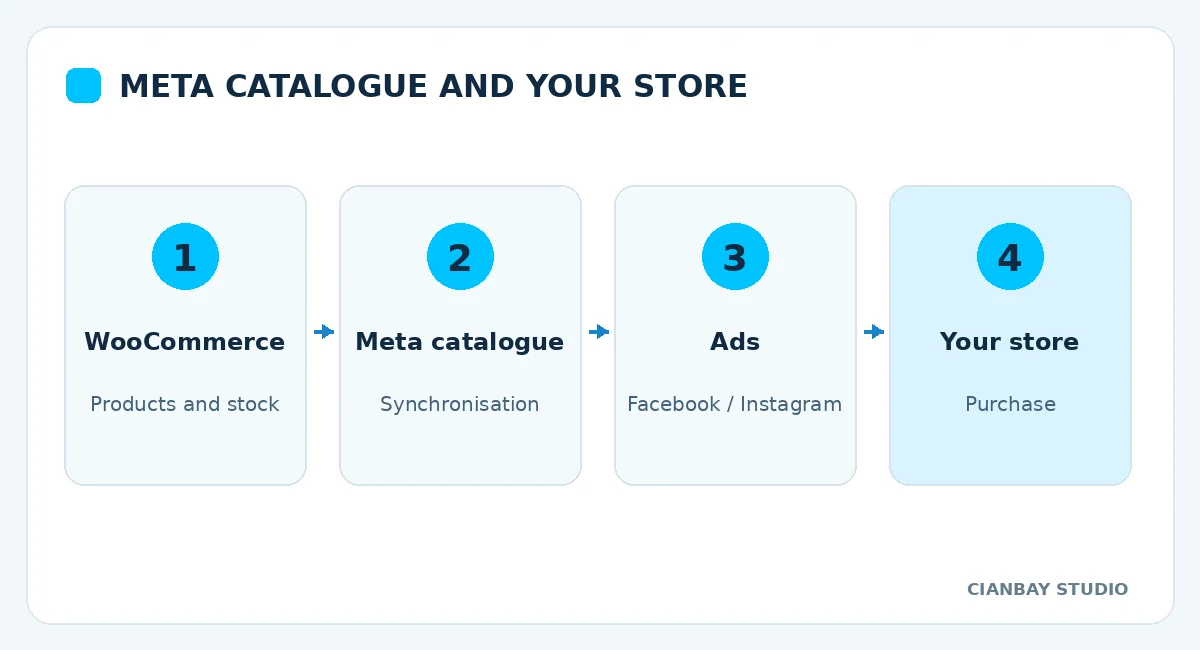
A clothing retailer posts products on Instagram, runs ads on Facebook and processes purchases through its WooCommerce website. If prices or stock have to be copied manually into each channel, mistakes and delays become increasingly likely. Integrating the store with Meta creates a shared source of product information and lets the business measure relevant website interactions. The website remains responsible for the customer's ordering and payment experience.
Meta catalogues, Shops and advertising are different capabilities
A catalogue stores product offers, including titles, images, prices, availability and landing pages. It can support eligible advertising formats. Facebook Shops and Instagram Shopping are separate capabilities with their own market, business account and product eligibility conditions. The Meta Business Extension FAQ explains account requirements; do not assume that sending catalogue data automatically enables product tags or native in-app checkout. Depending on availability, an advertiser can use catalogue-driven ads linking visitors to its own website without a native Shop.
Confirm native Shop, product tagging and checkout eligibility in Commerce Manager before promising these features: the core WooCommerce extension documentation does not establish universal support for in-app checkout.
Connect your store with Meta for WooCommerce
The official Meta for WooCommerce extension supports product synchronisation, Meta Pixel and Conversions API. Before installing, identify the correct Meta business portfolio, Facebook Page, professional Instagram account, ad account, catalogue and event data source. The business should retain ownership of these assets rather than relying on a contractor's personal account. Grant the necessary permissions and review them when a partner relationship ends.
- Install an up-to-date and compatible extension.
- Connect the correct business and select its existing assets where appropriate.
- Configure the catalogue and attribute mapping.
- Sync representative simple and variable products and inspect Commerce Manager.
- Check the event data source in Events Manager and complete a test order.
Product data and synchronisation
Each product offer needs a consistent ID and accurate information such as title, description, image, landing page, price, currency and availability. Some categories need further attributes. Consult Meta's catalogue integration guide rather than relying on the minimum fields of a generic WooCommerce export. Data sources may support country or language overrides as described in the Meta Product Feed reference. Make sure routine updates do not create duplicate offers with new IDs whenever the title changes.
Variations, stock and prices
A blue shirt in size M and a blue shirt in XL may have distinct offer IDs and stock counts. If the M variation sells out, the relevant catalogue offer should no longer claim it is available. Map colour, size and other attributes consistently and verify variant links. If the store imports an ERP inventory feed, define which system controls stock and ensure changes reach Meta after the WooCommerce update. Our inventory synchronisation guide explains how to design this data flow. Check whether cached variants or outdated images cause discrepancies.
Meta Pixel and Conversions API
Meta Pixel sends selected browser-side events, while Conversions API sends permitted data through a server integration. Together they can support advertising measurement and optimisation. Typical ecommerce events include ViewContent for a product view, AddToCart for a cart addition, InitiateCheckout for checkout initiation and Purchase for the purchase event. Meta's pixel events guide describes relevant event types. A server-side integration does not bypass consent, data protection obligations or platform restrictions. Make sure both paths respect the rules applicable to your users and business.
Deduplicate the same purchase
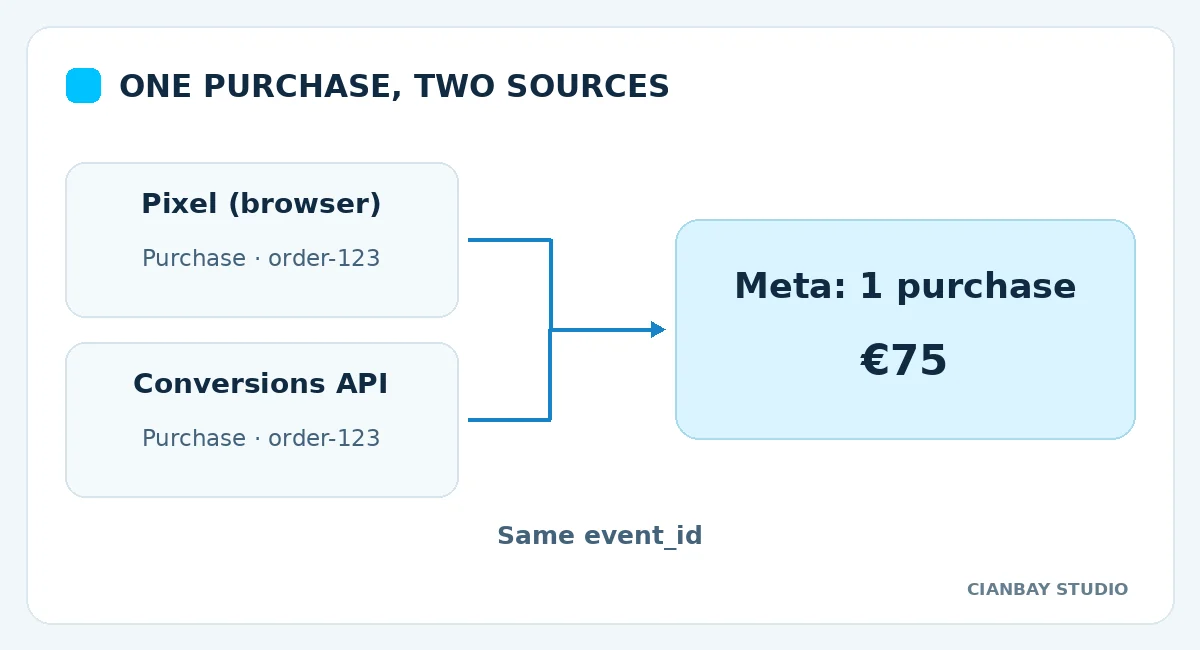
Suppose a customer completes one €75 order. If the browser and server both report that purchase, they should use the same event name and corresponding unique event ID. Correct deduplication ensures the two messages represent one conversion, not two separate purchases. Inspect event_id, event_name, currency and value using the Conversions API parameter documentation. Meta for WooCommerce includes a deduplication mechanism, but third-party tracking plugins, GTM scripts or theme code may introduce another event source. Avoid creating multiple independent tracking implementations for the same event.
Match event content IDs with catalogue item IDs
Catalogue ads depend on the relationship between product events and catalogue entries. If the catalogue identifies a variation as SHIRT-M-BLUE, events related to that variation should contain the matching identifier in content_ids. An unmatched numerical WooCommerce product ID can prevent the advertised product from being associated correctly. Inspect the actual identifiers produced by your integration before changing mapping. Some catalogues use product group IDs for specific event configurations, so verify whether the event is reporting an individual offer or a group.
Localise catalogue and landing pages
A UK-facing campaign should lead to an eligible page with appropriate GBP prices and delivery information, while EU or US campaigns may require different offers, currencies or shipping policies. Country, account and product eligibility must be checked separately. Connecting an Instagram professional account does not guarantee access to all shopping features. For a store serving several markets, coordinate the translated product data and destination URLs with the catalogue. See our multilingual WooCommerce guide. Avoid advertising an offer that shoppers cannot actually order from the target country.
Test events and products before advertising
- Review product synchronisation and catalogue errors in Commerce Manager.
- Open the advertised product pages on desktop and mobile.
- Check ViewContent, AddToCart, InitiateCheckout and Purchase.
- Confirm event IDs and content IDs, including browser/server deduplication.
- Compare currency and value with a real test order.
- Test consent settings and ensure restricted data is not sent.
Review data handling with a qualified privacy professional where required. Do not send payment card details, sensitive information or unnecessary personal data as custom event parameters. Compare advertising reports with actual paid and fulfilled orders, cancellations and returns. Attribution rules can differ across ad platforms and analytics tools, so a reported conversion is not always directly comparable with a store order.
Frequently asked questions
Do I need an Instagram Shop to run catalogue ads?
Not necessarily. Available catalogue ad formats and account requirements are separate from native shop eligibility.
Does Conversions API replace the Pixel?
They are separate event delivery methods, and a coordinated implementation can use both.
Can I also connect Google Shopping?
Yes. Different channels can use the same underlying catalogue through separate integrations. See our Merchant Center guide.
Conclusion
CianBay Studio builds WooCommerce stores and integrates product catalogues, event measurement and ecommerce systems for businesses in Ukraine and internationally.