Dmytro CianBay · 22.11.2026 · 6 min read
WooCommerce Google Shopping integration: Merchant Center and product feeds in 2027
Connect WooCommerce to Google Merchant Center: product feeds, free listings, Merchant API, product identifiers, price mismatches and Shopping ads.
Shoppers searching for a specific pair of headphones or running shoes may not know your store's name. Product listings can introduce eligible offers with an image, price and link to the ecommerce website. For WooCommerce merchants, Google Merchant Center is a way to distribute structured product data to Google. The challenge is not simply installing a plugin; it is keeping the product information, landing page, checkout and merchant policies consistent.
Merchant Center, Google Shopping and Google Ads
Merchant Center is where merchants submit their product information and manage eligibility. Google Shopping is one of the experiences in which shoppers can discover relevant products. Google Ads is the platform for paid advertising campaigns. A merchant may make eligible products available through free listings without paying for an advertising campaign. The Google free listings documentation explains where these offers may appear, including Shopping and other Google surfaces. Approval means that an item is eligible, not that Google will necessarily show it or generate sales.
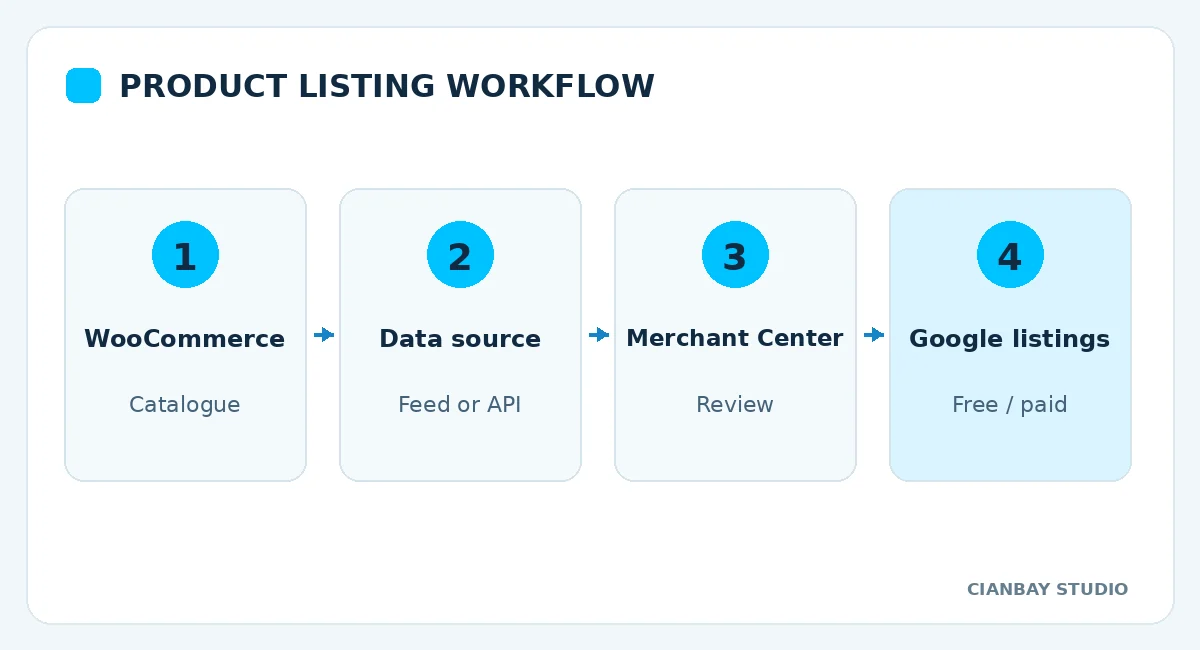
What is a Google Shopping product feed?
A product feed or data source contains attributes for individual offers, rather than the URLs alone that a sitemap supplies for discovery. A typical offer includes a durable ID, title, description, landing page URL, image URL, price with currency, and availability. Further attributes such as brand, GTIN, MPN, condition, size and colour depend on the product and market. Refer to the Merchant Center product data specification for the required and recommended fields instead of assuming the same template works for every category.
Connect a WooCommerce store to Merchant Center
- Create or connect an owner-controlled Merchant Center account and verify the required business and website information.
- Choose a supported integration, such as Google for WooCommerce, or a compatible feed generator.
- Configure intended countries, languages, data sources and currency settings.
- Set shipping, return and applicable tax information.
- Submit a sample of products, inspect their status and resolve issues before expanding to the full catalogue.
Follow the WooCommerce setup and configuration guide. Check whether existing Merchant Center settings could be changed by the integration. Keep the merchant's ownership and access permissions clear when an agency or developer configures the account.
Merchant API and scheduled product feed files
Data can be transferred through an API integration or a file source that Google retrieves or receives periodically, depending on the chosen setup. In August 2026, Google retired the Content API for Shopping. For a 2027 implementation, confirm that an API-based plugin uses the supported Merchant API rather than an obsolete endpoint. Google's Content API sunset documentation describes the migration. If you use scheduled files, ensure the latest version is reliably generated and fetched. Monitor failed jobs and stale data rather than assuming automation always succeeds.
Identifiers, product variants and images
An SKU is typically the store's internal inventory identifier. A GTIN identifies a product globally, for example a UPC or EAN assigned by the manufacturer. Submit genuine identifiers; do not manufacture a GTIN simply because a field is empty. For colour and size variants, use distinct offer IDs and the appropriate variant attributes, grouped using item_group_id when required. The landing page should show or select the specific offer in the feed. Choose an accurate main image of the product and avoid promotional text overlays or irrelevant graphics that may violate Google's image rules.
Keep price and availability consistent
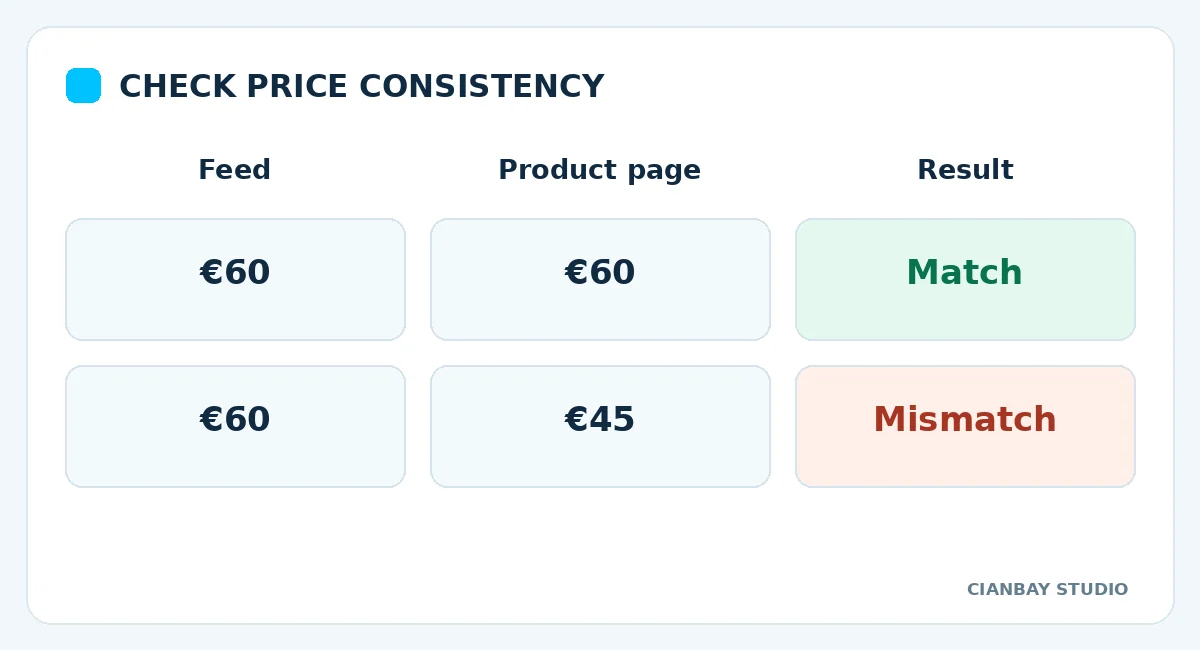
Suppose a product costs €60 in the feed but the WooCommerce page displays €45 after a price change. The mismatch can prevent the offer from being shown. Stock, currency and variant details can cause the same issue. The price displayed in the customer's selected market and the feed must agree with the actual purchase offer. Audit caches, scheduled imports and external warehouse updates so they cannot repeatedly overwrite newer values. Read our guide to WooCommerce inventory synchronisation for related architecture considerations.
Product structured data and organic discovery
Google Search can also understand products using Product and Offer structured data. The merchant listing structured data guide explains the supported properties and eligibility. Verify that the markup uses the same price, currency and availability as the visible page and the Merchant Center data. Structured data is not a substitute for accurate product pages or account policy compliance. Inspect representative pages in the Rich Results Test and review relevant Search Console reports. Avoid duplicate or contradictory markup generated by multiple plugins.
International catalogue feeds
An English-language store may serve customers in the UK, Ireland or the United States, but language alone does not establish market eligibility. Check the supported countries, languages and currencies and configure the relevant destination, local offer page, shipping and return arrangements. GBP, EUR and USD are not interchangeable balances. A store selling internationally may need separate market-specific data sources or appropriate destination configuration. Confirm that taxes, delivery methods and prices are consistent with local requirements. Our article on multilingual WooCommerce catalogues describes how to maintain product relationships across languages.
Why offers get disapproved
- Missing required attributes or invalid product identifiers.
- Inconsistent price, availability or currency between the data source and landing page.
- Inaccessible website, product URL or image.
- Incorrect business information or unclear shipping and returns.
- Products or marketing claims that conflict with Google's policies.
Review the Merchant Center issues and repair the underlying store or data source. See Google's guide to Merchant Center issues and ensure the return policy configuration matches your website. Do not create replacement accounts to evade unresolved policy problems.
For each market, validate the store’s actual returns and refund workflow alongside the Merchant Center shipping and returns configuration. If checkout does not support the advertised destination or the final total unexpectedly changes, fix that customer experience before promoting the catalogue.
Free listings versus paid Shopping campaigns
Monitor product eligibility, impressions and clicks for free listings. A merchant who wants paid reach can separately connect Google Ads and configure Shopping or Performance Max campaigns where available. Before spending on ads, test purchase conversion tracking, value, currency and transaction IDs. Reconcile conversions with actual orders and returns. Compare advertising costs with revenue and margin, not only the number of clicks. Catalogue quality remains important in both channels.
Frequently asked questions
Do I need to pay for a Merchant Center account?
Free listings do not require an advertising budget. Paid campaigns and commercial integration plugins have separate costs.
Can one WooCommerce store sell across several countries?
Yes, if its catalogue, landing pages and fulfilment arrangements meet the target market requirements.
Does a product feed guarantee that items appear in Shopping?
No. Google evaluates eligibility and matches offers to relevant searches.
Conclusion
CianBay Studio builds WooCommerce stores and configures product catalogues, technical SEO and integrations for businesses in Ukraine and internationally.