Dmytro CianBay · 23.11.2026 · 5 min read
Slow WordPress Admin Dashboard: How to Diagnose and Speed Up wp-admin in 2027
WordPress admin slow while the site is fast? Diagnose slow queries, plugins, PHP, WP-Cron, Action Scheduler and hosting before making risky changes.

Your public website may load instantly while the WordPress dashboard takes 15 seconds to open. Saving a page freezes the editor, viewing orders is frustrating, and refreshing the product list feels slower each day. Upgrading hosting or removing every plugin may not solve the problem. The right first step is to identify whether the delay comes from PHP, the database, JavaScript, a background job, or an external API.
Why a fast website can have a slow dashboard
Many public pages are served from full-page cache. Logged-in administration screens usually need fresh user-specific data, permissions, database queries and integration checks. A good homepage speed score therefore does not prove that wp-admin is healthy. Admin performance should be measured separately, with a reproducible task.
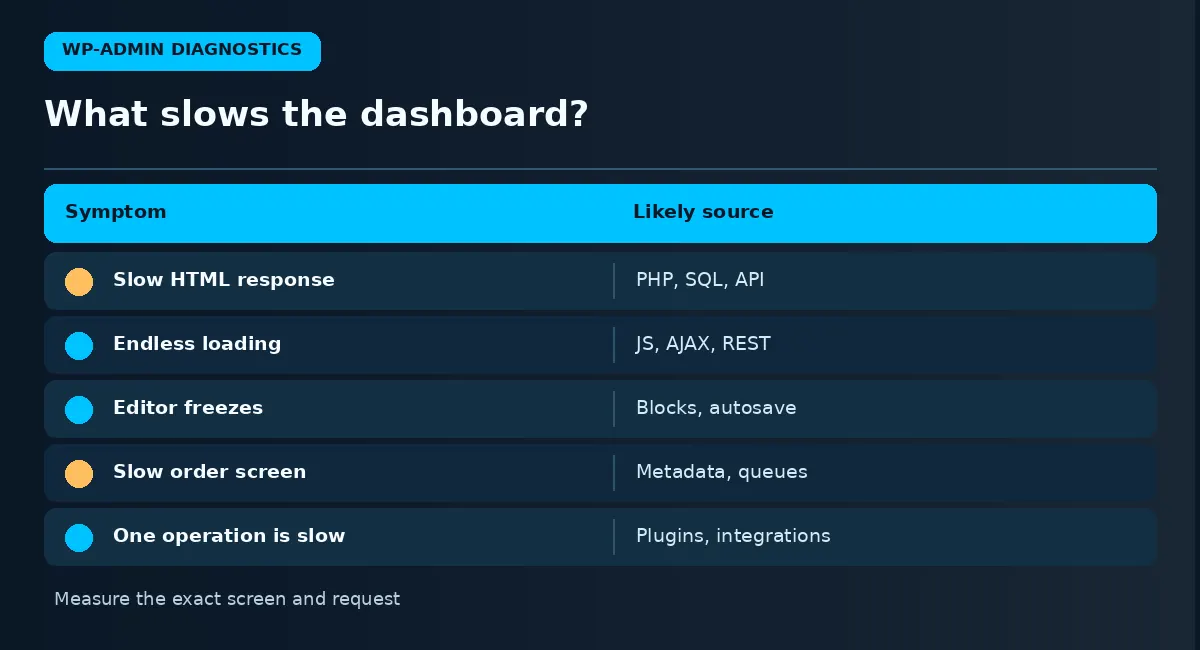
- Slow initial HTML response: examine server processing, database queries and external requests.
- Fast HTML but a spinning interface: inspect browser JavaScript, admin-ajax.php and REST API calls.
- Only the editor is slow: check block extensions, autosave, page builders and content processing.
- Only the WooCommerce screens are slow: inspect product metadata, reports, scheduled actions and third-party integrations.
Measure before changing anything
- Record which screens are affected: Dashboard, Posts, Pages, Products, Orders or Settings.
- Use your browser Network panel to compare the main HTML response with follow-up Fetch/XHR calls.
- Open Tools → Site Health to review PHP, REST API, loopback and server configuration notices.
- Make a current backup and reproduce the problem on staging where possible.
- Compare the symptom with hosting CPU, memory, database and PHP slow-request logs.
WordPress Site Health documentation explains the available checks. Its green status alone does not locate a slow SQL query, so combine it with timing and request-level inspection.
Use Query Monitor to identify the slow component
The Query Monitor plugin can display database queries, their callers, HTTP API requests and PHP warnings. Compare the same admin page under similar conditions. A plugin responsible for many queries deserves inspection, but query count by itself does not prove that it must be deleted.
Look for expensive SQL statements, repeated external license checks, slow API endpoints and components that load large datasets for every dashboard page. Problems may affect one role or one user only, for example because a dashboard widget performs a custom report every time it opens.
Database bottlenecks and autoloaded options
The WordPress options table is read frequently. Large autoloaded values can slow requests, while unsuitable indexes or repeated metadata queries can add significant database time. The WooCommerce guide to wp_options and site speed describes the issue. Total database size alone is not a useful diagnosis: focus on actual slow statements, autoload size, indexes and transaction load.
Never bulk-delete option rows or Action Scheduler records because a tutorial calls them unnecessary. Some values belong to active extensions, payment rules or integrations. Identify ownership, take a backup and test cleanup on a staging environment before making production changes.
WP-Cron, Heartbeat and WooCommerce background jobs
WordPress schedules publishing, updates and background processing. WooCommerce uses Action Scheduler for many recurring or deferred tasks. Check WooCommerce → Status → Scheduled Actions for overdue, failed and repeatedly recreated tasks. The WordPress loopback reference explains why blocked requests can disrupt the scheduling workflow.
A large queue can be a symptom rather than the cause. An import extension may continuously generate actions, or a remote endpoint may timeout. Identify the owner of recurring jobs before deleting anything. Never disable WP-Cron without providing a reliable alternative server cron. Heartbeat supports autosave and post locking, so disabling it globally can cause new editorial issues.
Hosting, PHP workers and external requests
An admin page may contact an email service, shipping API, analytics tool, CRM or license server. A single slow remote call can delay a request. Check PHP slow logs, CPU throttling, database load, available PHP workers and connection timeouts. Do not assume that raising PHP memory_limit improves performance unless a genuine memory constraint exists.
A supported PHP version and suitable persistent object cache can improve some workloads. The WordPress performance documentation explains object caching. Redis is not a cure for slow third-party APIs or front-end JavaScript problems; test each change against the original bottleneck.
A safe wp-admin optimization plan
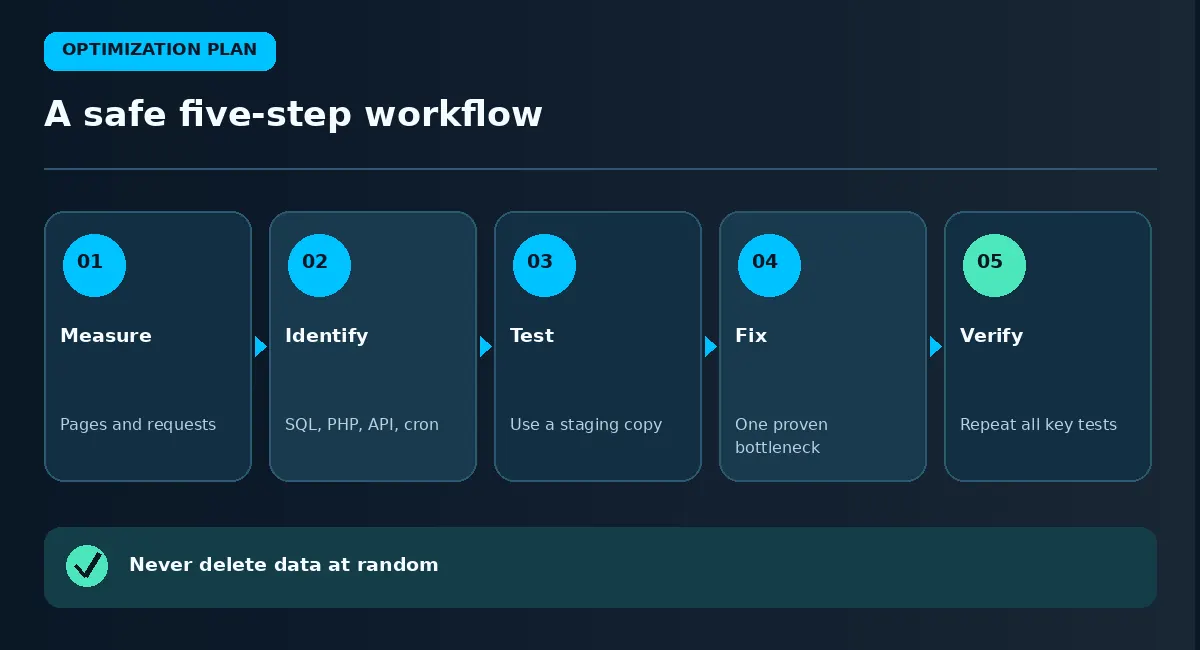
- Back up files and database and record a baseline for the same pages.
- Locate the slow stage: PHP response, SQL, background jobs, browser script or external API.
- On staging, test suspected plugins, theme code and dashboard widgets one at a time.
- Optimize confirmed slow queries, review indexes and apply object caching only where appropriate.
- If resources are exhausted, check CPU, RAM, PHP workers and peak workload before upgrading hosting.
- Run the same measurements after each fix and verify editing, orders, scheduled jobs and customer emails.
For deeper investigation, follow WordPress debugging guidance to capture errors without showing them to visitors. Keep debug logs inaccessible to the public and disable unnecessary logging after diagnosing the issue.
Frequently asked questions
Why is wp-admin slow when PageSpeed is high?
PageSpeed primarily measures public-page experience, often helped by caching. Logged-in administration tasks use different execution paths.
Should I deactivate every WordPress plugin?
Not on a busy production site. Test changes on staging, identify the slow component and remove or replace only what is necessary.
Will Redis speed up the WordPress dashboard?
It can help database-heavy operations, but not every cause of delay. External requests and JavaScript failures require different fixes.
Why is the WooCommerce Orders screen particularly slow?
Examine reporting, order metadata, active integrations, scheduled actions and server logs. Do not assume there is one universal cause.
Do I need to move to a new hosting provider?
Only if measurements point to resource constraints or hosting limitations after avoidable bottlenecks have been fixed.
Conclusion
A slow WordPress dashboard is a troubleshooting problem before it becomes a hosting purchase. CianBay Studio provides WordPress repair and performance diagnostics, WooCommerce support and business integrations for clients in Ukraine and internationally.